Introduction
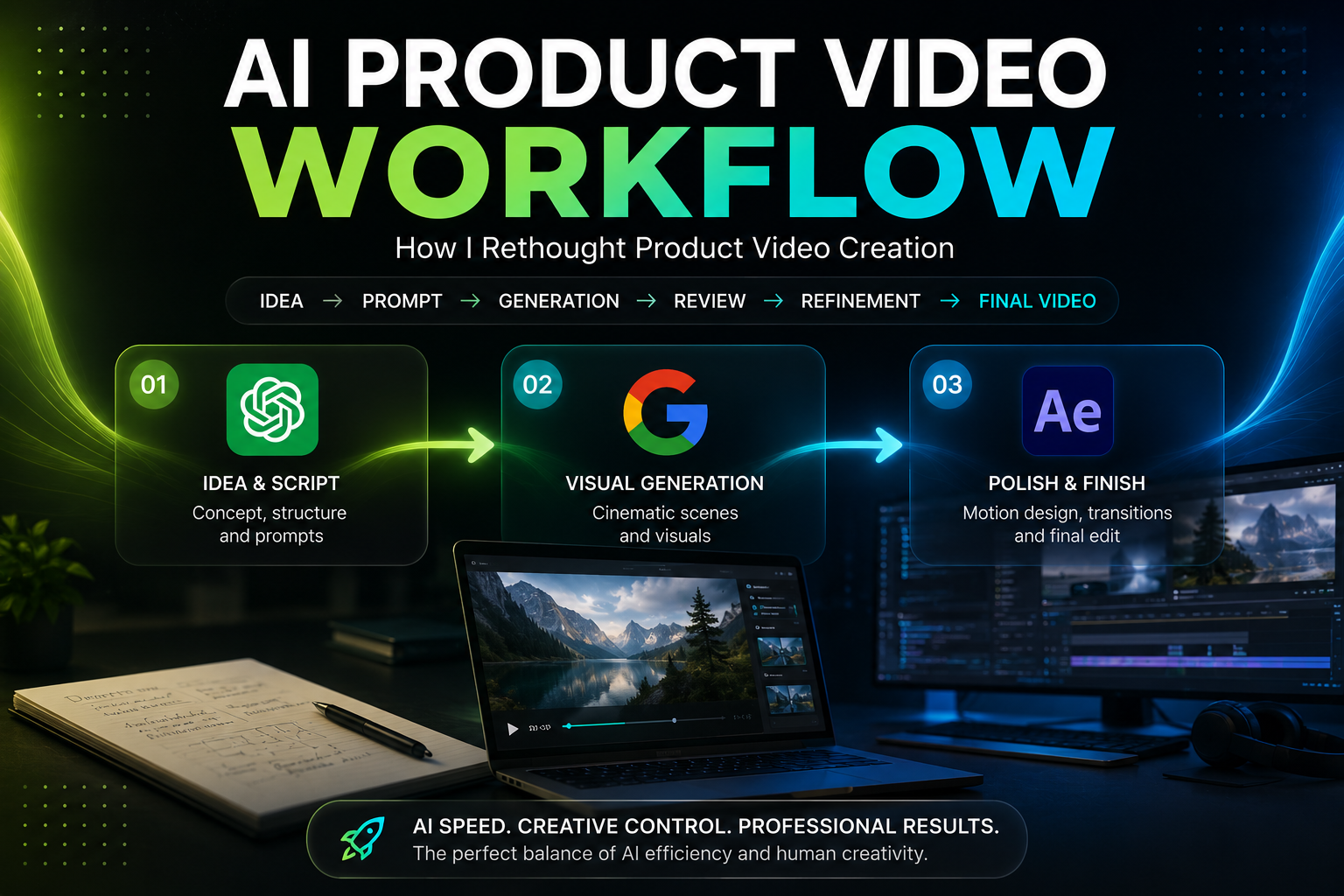
To begin, I wanted to explore how an AI product video workflow could change the way I approach product video creation. So, instead of building every scene, animation, and visual element completely from scratch, I experimented with an AI-assisted workflow using ChatGPT, Google Flow, and After Effects.
However, the goal wasn’t simply to “make a video with AI.” Rather, it was to understand where AI could actually speed up the creative process and where a designer still needs to step in.
In the end, the final workflow combined AI-generated visuals with traditional motion design to create a polished product video.
The Challenge
Creating a product video the traditional way involves a lot of manual work. Specifically, from developing the concept and writing the script, to creating visuals, animating UI elements, managing transitions, and polishing the final edit every stage takes significant time.
Because of this, I wanted to find a faster way to:
- Explore different visual concepts
- Create cinematic product scenes
- Experiment with camera movements
- Animate product UI
- Generate multiple variations quickly
- Reduce repetitive production work
Even so, there was another question underneath all of this:
Could AI actually give me the level of control and consistency required for a professional product video?
Ultimately, that became the central question behind the experiment.
The AI Product Video Workflow: Three Tools, Three Jobs
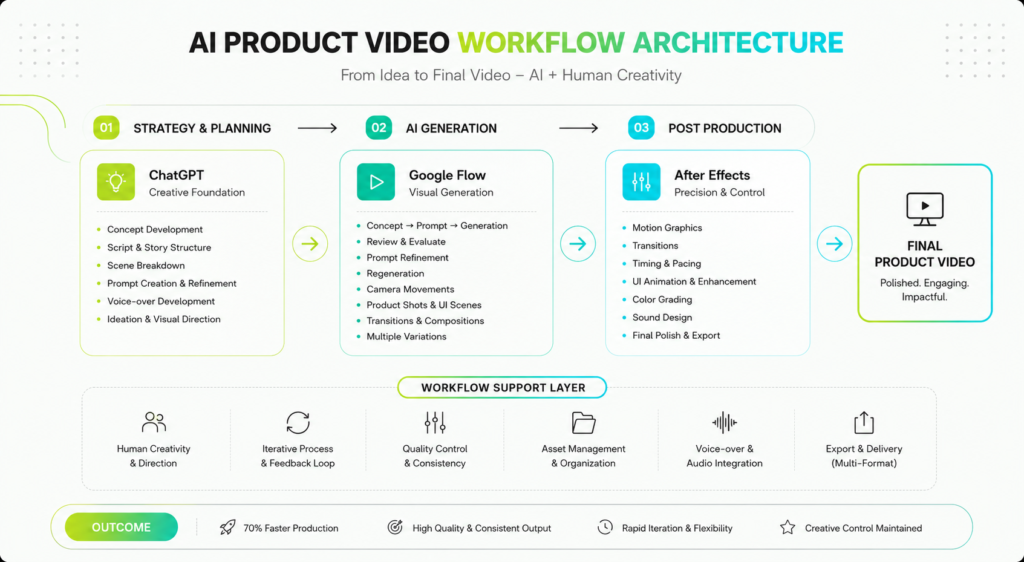
To answer it, I built this AI product video workflow around three tools, each solving a different part of the process.
01 ChatGPT: The Starting Point
First, ChatGPT became the creative foundation. Specifically, I used it to:
- Develop the video concept
- Structure the story
- Break the video into scenes
- Write scene descriptions
- Create and refine prompts
- Explore different visual directions
- Develop the voice-over
- Iterate when an AI-generated scene didn’t work
In other words, rather than treating a prompt as a one-time instruction, I used it as part of an ongoing, iterative design process.
02 Google Flow: The Visual Generation Stage
Next, Google Flow was where scene ideas became moving visuals. Essentially, the process looked like this:
Concept → Prompt → Generation → Review → Prompt refinement → Regeneration
Along the way, I experimented with:
- Camera movements
- Product shots
- Transitions
- Cinematic compositions
- Object movement
- UI-focused scenes
- Different visual treatments
As a result, this let me explore ideas far faster than building every visual by hand.
03 After Effects: Where Control Comes Back
That said, AI generated footage wasn’t the final product it was only the starting point. So, I brought selected clips into After Effects to add the precision AI generation couldn’t reliably provide:
- Motion graphics
- Transitions
- Timing adjustments
- Compositing
- Visual corrections
- Product/interface animations
- Final polishing
In short, AI created the starting point, while After Effects gave me control.
The Full Workflow
- Idea
- Story & Script ChatGPT
- Scene & Prompt Development ChatGPT
- Video Generation Google Flow
- Review & Iteration
- AI Clip Selection
- Motion Animation After Effects
- Compositing & Polish
- Final Product Video
From Prompt to Video: A Shift in How I Think
Notably, one of the biggest changes in my process was how I approached visual creation. Rather than immediately opening After Effects and building a scene by hand, I started by asking:
“What should this scene communicate?”
From there, I translated that idea into a visual prompt. Consequently, the work became less about manually constructing every frame and more about directing the outcome.
Typically, I’d generate multiple versions, compare them, identify what wasn’t working, and then refine the prompt accordingly. In short, it stopped feeling like production — and started feeling like art direction.
The Pain Point: AI Doesn’t Always Understand What You Mean
Overall, this was probably the most interesting part of building this AI product video workflow.
Generating a video was relatively easy. However, generating the exact video I wanted was not. Although Google Flow could understand the overall concept, the details were often unpredictable.
Spelling & Text
For instance, one of the biggest problems was text. Specifically, AI generated text could contain:
- Spelling mistakes
- Incorrect words
- Random characters
- Distorted UI labels
- Inconsistent product names
Even when the overall scene looked great, incorrect text could make the shot completely unusable. As a result, I couldn’t just generate a scene and drop it straight into the timeline.
UI Consistency
Similarly, UI-based scenes brought their own set of problems. For example, elements could:
- Change shape
- Move unexpectedly
- Disappear
- Transform between frames
- Change position
- Lose small details
Also, for a product video where the interface needs to look intentional and accurate this was a major limitation. Therefore, it demanded a different approach.
Object Consistency
Likewise, maintaining consistency between generations was another challenge. In particular, the same object could look slightly different from one shot to the next:
- Proportions changed
- Details changed
- Shapes changed
- Objects appeared or disappeared
In other words, the AI understood the idea of the object, but not always the exact design system behind it.
Motion Control
Additionally, AI was unpredictable when it came to precise animation. For example, I could ask for a specific movement, but the result might:
- Move too quickly
- Move in the wrong direction
- Add unnecessary camera movement
- Animate an object differently than expected
On one hand, for cinematic footage, this occasionally created happy accidents. On the other hand, for precise product animation, it simply meant another round of iteration.
Finally, this is Part 1 of a 2-part series on building an AI product video workflow. Read Part 2 for exactly how I solved these problems, and what the finished experiment taught me about the changing role of the designer.